You've made an account and nothing is connected yet. That's the right place to be. This page takes you from a single prompt to an agent your team shares and a task that runs on a schedule, in six steps. Stop wherever it's already useful — plenty of people never go past step 2.
If you already use Claude Code or Codex daily, start at For Claude Code and Codex users instead, then come back here for steps 3 to 6.
1. Send a few prompts
Open a new chat from the sidebar. Don't overthink it — Okou handles plain language, and you don't need to name any tools or learn any syntax. Send three or four in a row and watch what comes back:
"Summarize my unread Slack messages and tell me what needs a reply today."
"Find the GitHub issues assigned to me, sort them by age, and list the top three."
"Draft a polite follow-up email to last Tuesday's meeting attendees confirming the next step."
"Brief me on [Company] before my 3 p.m. — funding, recent news, and who here has talked to them."
You'll see Okou's plan, the tools it picks, and a live log of every step. The first time, a request may report "no Slack connector" or "no Gmail connector". That's expected, and it leads straight into step 2.
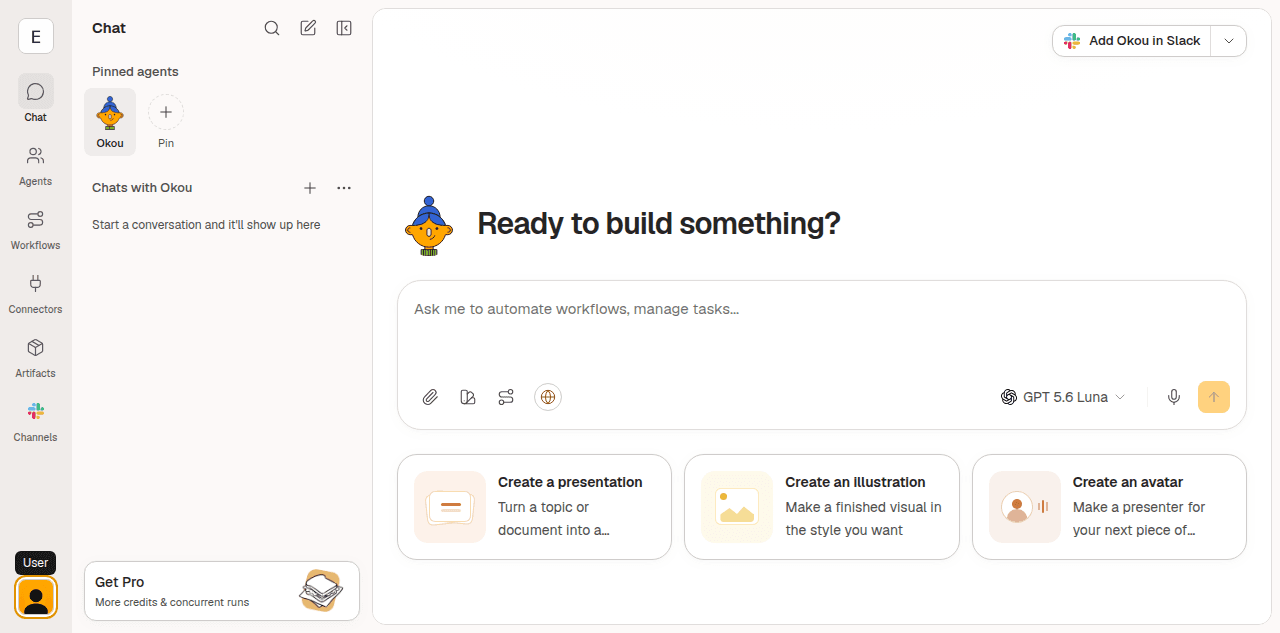
Two habits are worth forming in this first chat, because you'll use them constantly:
- Refine in place. Reply with a correction — "Same, but exclude the #marketing channel," or "Two sentences shorter, and add a call to action." You're adjusting the run, not restarting the task.
- Read the log. Under the result is every API call, every document read, every decision. When something comes out wrong, the log tells you which step to correct — which is usually faster than rewriting the prompt from scratch.
2. Try a workflow template, and connect the tool it needs
Writing procedures from scratch is the slow way to start. Okou ships a catalogue of ready-to-run workflow templates. Open the Template button in the chat composer and choose the Workflow category, then filter by the kind of work you do — Engineering, Product, Data, Marketing, Sales, Support, Operations, or CEO.
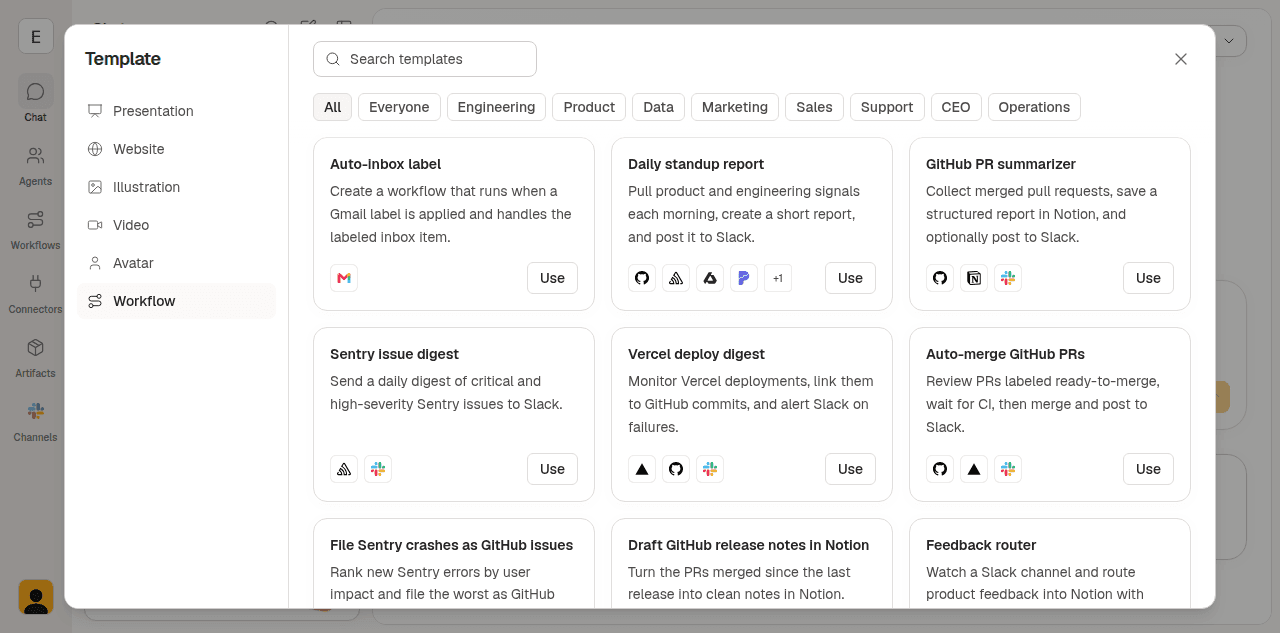
Each card names the services it touches, so you can see what a template needs before you commit to it: Daily standup report pulls product and engineering signals and posts to Slack, GitHub PR summarizer collects merged pull requests into a Notion report, Auto-inbox label runs when a Gmail label is applied. Pick Use on one that touches a tool you actually work in.
Okou will need permission for that tool, and will pause and ask:
- Tap Connectors in the chat composer and choose Add connectors, or follow Okou's inline prompt.
- Search for the service and add it.
- Finish the sign-in flow in the popup.
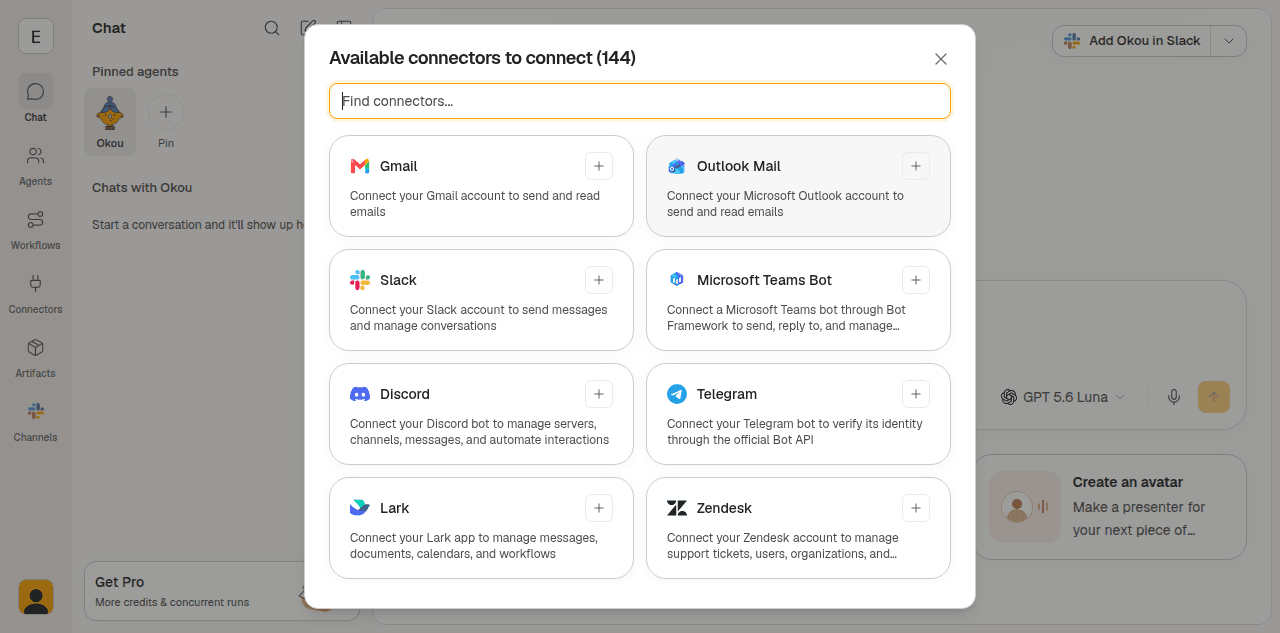
If the connector was triggered inline by an agent, Okou grants that agent access and resumes the task. If you opened it from the Connectors page instead, Okou asks which agents should be allowed to use it. A connection is reusable, but each agent still needs the permissions it asks for, and time-boxed grants have to be renewed when they expire.
Common places to start:
- Slack — read messages, post replies, find threads
- GitHub — search code and issues, file new issues, draft pull request comments
- Gmail / Google Calendar — search the inbox, prepare drafts, read your schedule
- Notion — read pages and databases, edit blocks
You don't have to authorize everything up front. Connect what the work needs, when it needs it. The Connectors page inside your workspace is the authoritative list of what's available to you — see the connector catalog for a grouped index of the most-used ones.
Okou never sees your passwords or login tokens — they stay on the platform, outside the model's reach. Every tool call shows up in the run log: which account, what it read, what it changed, when. You can revoke a connector or narrow its scope at any time. See Permissions for the full security model.
3. Make your own agent and shape its instruction
A template teaches you the shape of the work. An agent is where you make it yours.
An agent is a persistent identity: its own instruction, its own tone, its own connector grants, its own workflows. Open Agents → New agent and create one for a job you care about — support, research, marketing, recruiting. The dialog defaults to Public; switch it to Private while you're still getting it wrong.
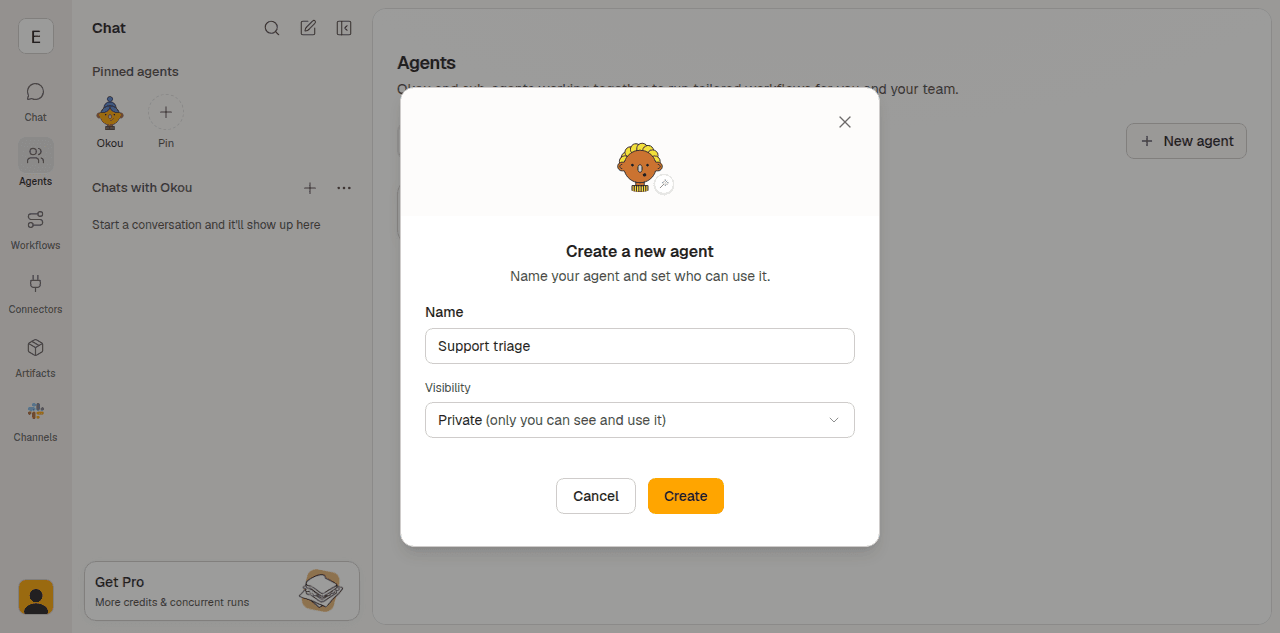
The agent's own page is where you shape it. Profile holds the name, the description teammates see, and the voice it replies in; Instructions shows the procedure it currently follows; Authorization controls which connectors it can reach.
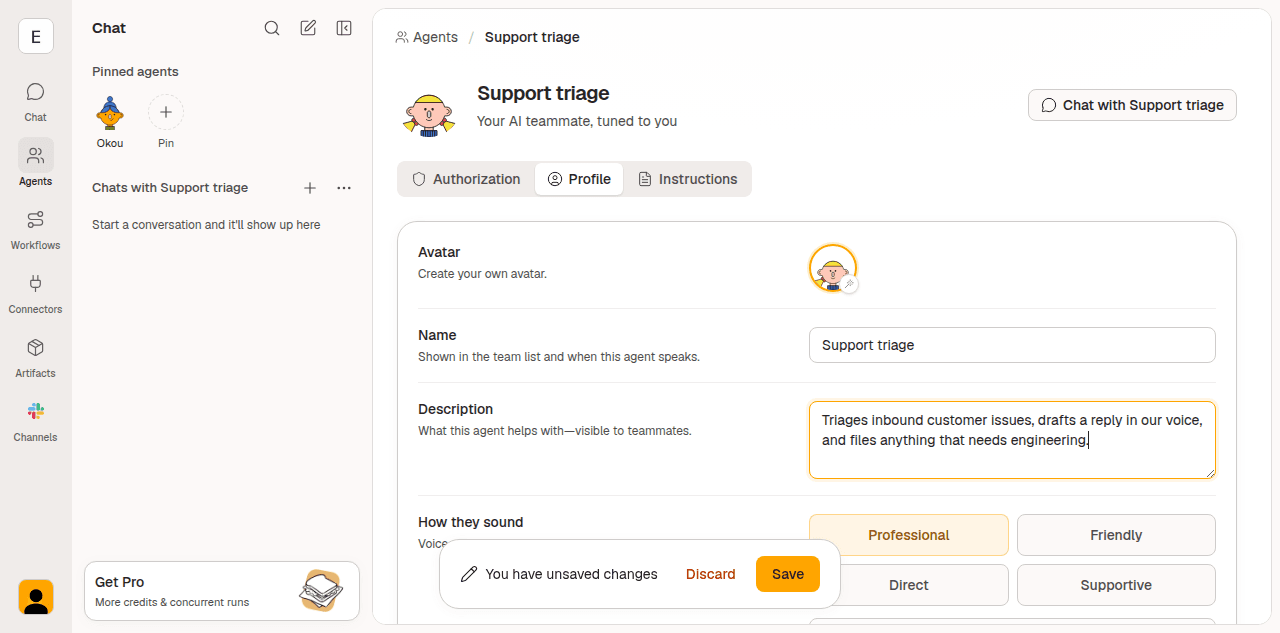
Then tune it the way you'd bring on a new hire:
- Run a real task through it.
- Where the output is off, say so in the chat, then ask Okou to fold the correction into the agent itself: "Update your instruction so you always cite the source document, and never send an email without showing me the draft first."
- Run it again. Repeat until the default behaviour is the behaviour you want.
A good instruction names the audience, the tone, the output shape, the tools to prefer, and the boundaries — what to never do, and when to stop and ask. That last part matters more than it sounds: it's how you decide what the agent is allowed to do without you watching.
Resist the urge to write the perfect instruction before the first run. Instructions get good by being corrected against real output, not by being drafted carefully in advance.
4. Save what worked as a workflow
Once a task has come out right twice, stop re-typing it.
Ask in the same chat: "Turn this into a reusable workflow called morning-brief." Keeping the successful run in the same conversation matters — it gives Okou the real inputs, your corrections, and the output shape to capture.
Okou reads the conversation, drafts the procedure, and creates the workflow for you — you stay in the chat the whole time. It proposes a name, a description, the instruction, any files, and the visibility. Review all five before confirming, and pay particular attention to two:
- The description is what decides when the workflow fires later. "draft a reply to a customer email using our voice and our docs" will fire on the right message; "do email stuff" never will.
- Visibility is
privateby default. Making itpublicto the workspace is a deliberate step, not a side effect of saving.
Once Okou has saved it, the workflow also gets its own page under Workflows — that's where you go later to check or edit it, not where you had to create it. Instructions is the procedure Okou will follow every time it runs; read it back once, because this is what you'll change when the output drifts. The slug under the title, /morning-brief, is how you invoke it explicitly in chat.
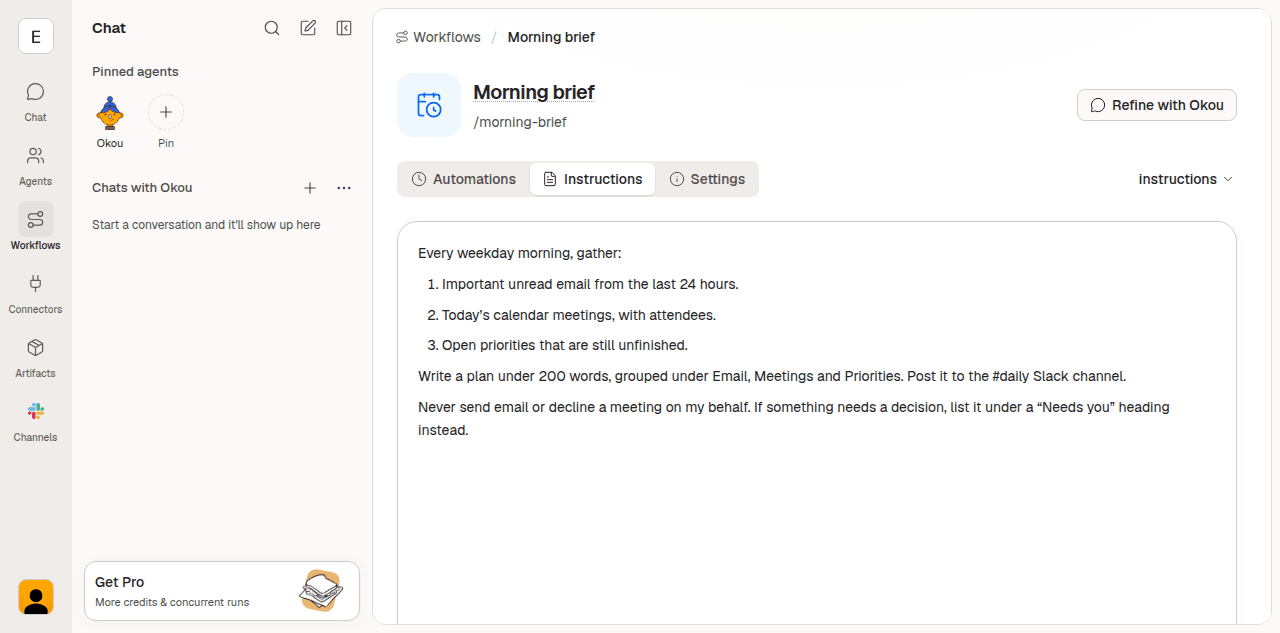
A workflow belongs to exactly one agent and runs with that agent's tone and access. See Workflows for the full anatomy.
5. Give it a schedule
Now make it run without you:
"Run this every weekday at 8 a.m. and DM me the result."
Again you never leave the chat: Okou confirms the cadence and the destination, attaches the trigger, and the task starts running on its own. If you'd rather set it by hand, the same thing is available from the workflow's Automations tab under Add automation.
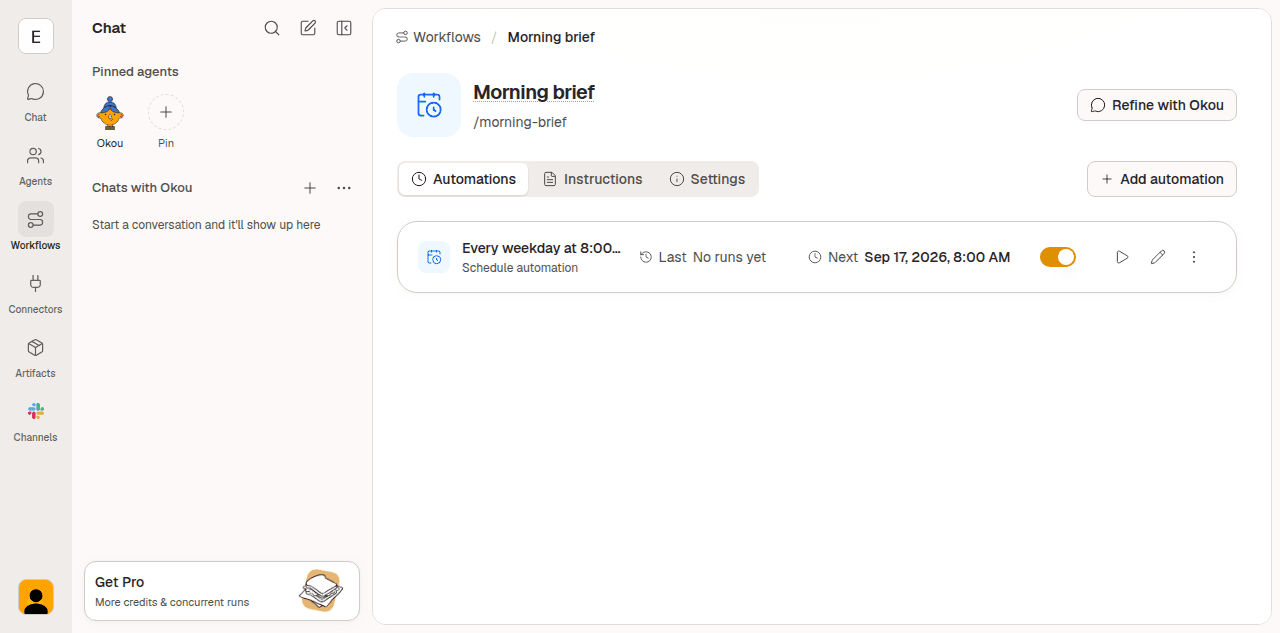
Each automation shows when it last ran, when it runs next, and a switch to turn it off without deleting it. The ▷ button beside it runs the workflow immediately — that's the Run now you should use before trusting the schedule.
A schedule is only one trigger type — a new email, a merged pull request, a calendar event, or a webhook work the same way. See Automations.
One rule worth keeping: run it manually before you automate it. If Run now fails, the problem is the workflow or its access. If Run now succeeds but nothing ever fires, the problem is the trigger. Debugging both at once is how a ten-minute setup turns into an afternoon.
Start narrow, too. A low-frequency schedule or a tight event filter, checked over the first few firings, beats a five-minute cadence you have to unpick later.
6. Invite your team, and use it together
Invite people once there's something for them to walk into. An empty workspace is a worse welcome than a named workflow.
Before sending invitations:
- Make the agent they need Public.
- Publish the workflow they should run first.
- Strip credentials and one-off data out of its instruction and files.
- Decide who needs Admin and who only needs Member. Use Member by default — Admin is for people who manage membership, billing, integrations, and workspace settings.
Then open Settings → People → Add member, enter the email address, choose the role, and send. The invitation stays pending until it's accepted, and you can review or revoke it from the same page. See Invite teammates.
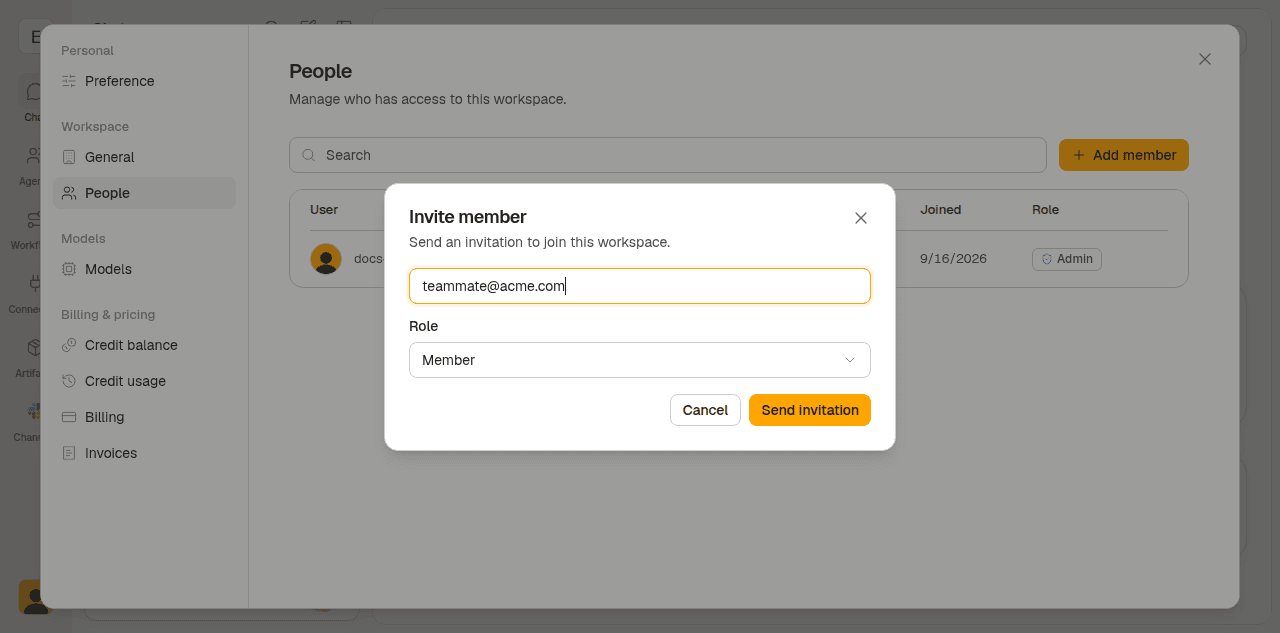
Once they're in, the difference between a personal productivity tip and a team capability comes down to a few habits:
- Hand over the first task explicitly. Tell a new member what to run, what to give it, and where the result lands.
- Let everyone keep their own accounts. Each member connects their own Gmail, their own Slack, their own subscription. Nobody shares a login.
- Publish what works, keep the rest private. Personal experiments stay private; the procedure the team depends on gets published and maintained like any other shared asset.
- Put it where the work already happens. Install the Slack integration and the same agent answers in a channel. See Slack.
- Copy, don't re-create. To give another agent the same procedure, copy the workflow. The two can then diverge on purpose.
See For teams for what this looks like once it's running.
What to try next
Prompts that show the range — pick any that match your day:
- "Triage the open issues in our main repository, group them by severity, and post the result to
#eng-weekly." - "Read this customer email [paste] and draft a reply in Korean. Cite the docs section that applies."
- "Pull last week's signups from the analytics dashboard, compare to the prior week, and write a one-paragraph summary."
- "Make a 5-slide pitch deck about our pricing model using the standard brand template."
- "Generate a 4-image social card set announcing the new Slack integration — square, brand colours, hand-drawn style."
- "Review pull request #4422 for SQL injection risk. Skip style and naming. Reply on the pull request with findings."
Where to go next
- Workflows — capture a procedure once, reuse it forever.
- Automations — schedules, email, GitHub, calendar, and webhook triggers.
- Agents — identity, instructions, and connector grants.
- Connector catalog — a grouped index of the tools Okou can reach.
- Models — which engine runs your chat, and what it costs.

